
Semantic Layer
Explore and manage the semantic model powering your AI Assistant.
The Semantic Layer page gives you a visual representation of the semantic model that your AI Assistant uses to translate natural language questions into accurate data queries. You can browse datasets, fields, and relationships, track generation status, and regenerate the model when your knowledge base changes.
Navigating to the Semantic Layer
- Open your workspace and navigate to AI Assistants in the sidebar
- Select your assistant
- Click Semantic Model in the assistant's sidebar
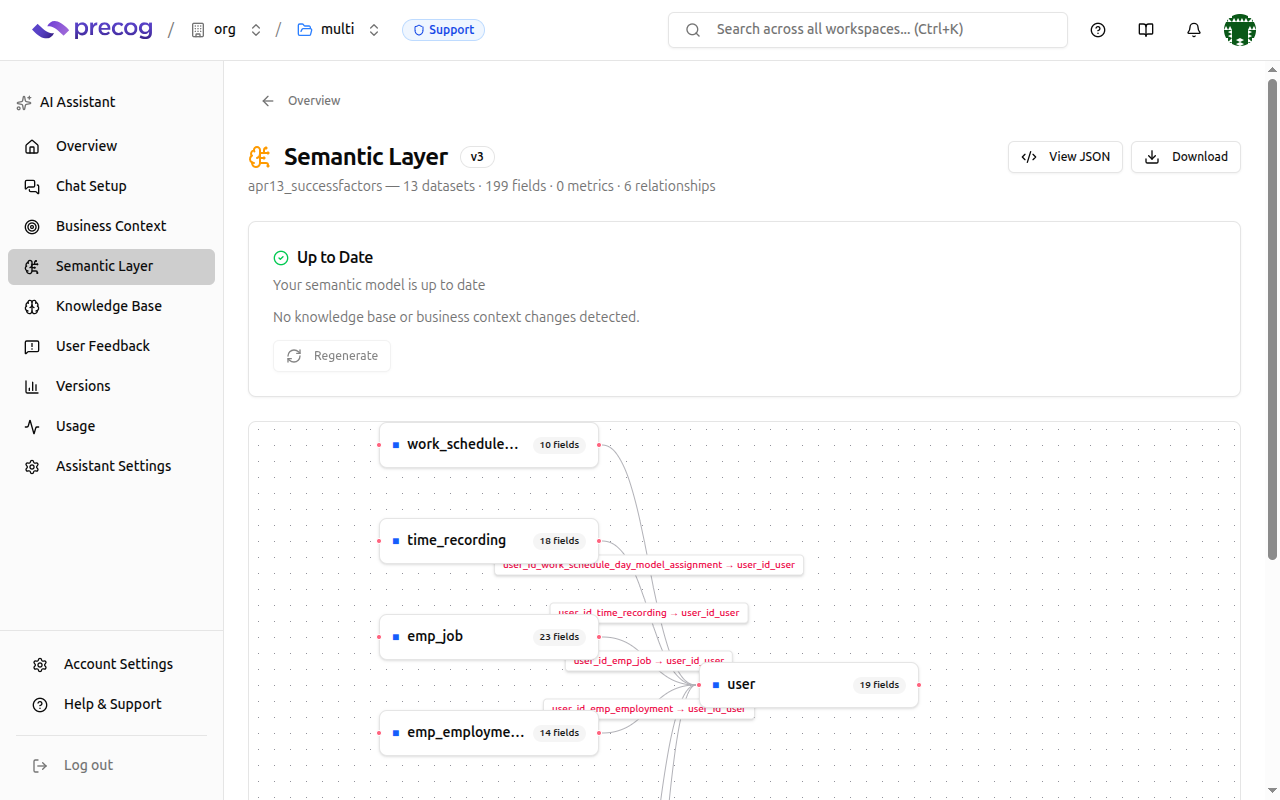
Summary Statistics
At the top of the page, you'll see a summary of your semantic model:
| Stat | Description |
|---|---|
| Datasets | Number of logical tables in the model |
| Fields | Total number of dimensions, time dimensions, and facts across all datasets |
| Relationships | Number of defined joins between datasets |
| Metrics | Number of pre-defined calculations (e.g., Total Revenue, Customer Count) |
Entity Relationship Diagram
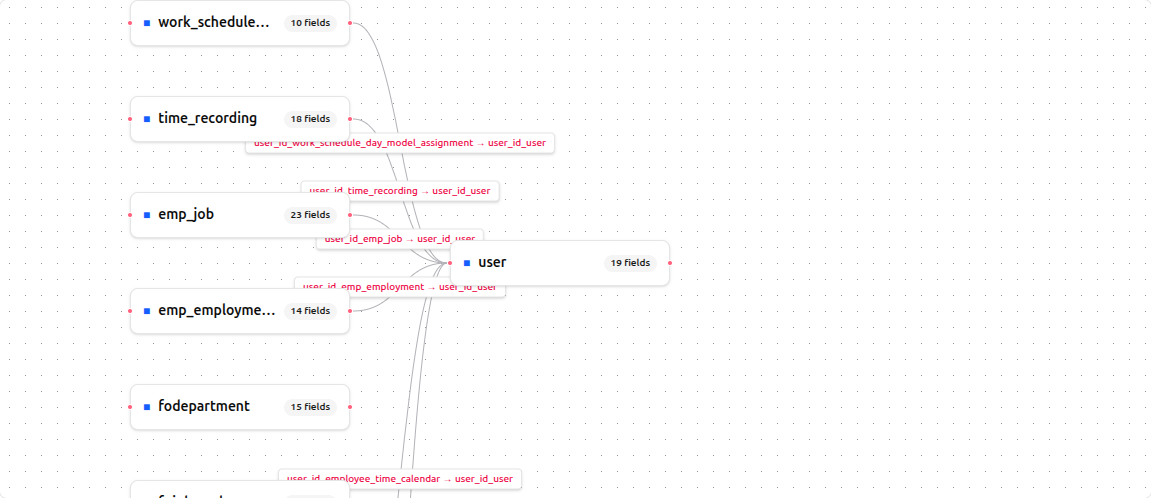
The Semantic Layer includes an interactive ERD (entity relationship diagram) that visualizes how your datasets connect to each other. This makes it easy to understand the structure of your semantic model at a glance.
- Datasets appear as nodes with their field counts
- Relationships appear as edges connecting related datasets
- Hover over a relationship to see the join columns and join type
Dataset Details
Click on any dataset in the ERD or the dataset list to view its details:
- Fields — All columns in the dataset, categorized as dimensions, time dimensions, or facts
- Description — A plain-language description of what the dataset represents
- Base table — The underlying database table the dataset maps to
Each field shows its name, data type, and description. Descriptions are generated from your Knowledge Base factors and schema metadata.
Generation Status
The Semantic Layer page shows the current status of your semantic model:
| Status | Meaning |
|---|---|
| Pending | Model generation has been queued but hasn't started yet |
| Generating | Model is being built from your data schemas and knowledge base |
| Succeeded | Model was generated successfully and is ready to use |
| Failed | Generation encountered an error — check the error message for details |
When generation is in progress, the page displays a progress indicator. You can continue using other parts of the assistant while generation completes.
Regenerating the Model
When you make changes to your Knowledge Base — approving new factors, adding definitions, or correcting business rules — your semantic model may become out of date.
A banner appears at the top of the Semantic Layer page when knowledge base factors are newer than the current model. To update the model:
- Click the Regenerate button
- Precog rebuilds the semantic model incorporating your latest knowledge base changes
- The new model replaces the previous version once generation succeeds
Note: Regeneration runs asynchronously. You can continue working while the model rebuilds.
Downloading the Model
You can download the semantic model as a JSON file in OSI (Open Semantic Interface) format:
- Click the Download button on the Semantic Layer page
- The model is saved as a
.jsonfile
The OSI document contains the complete semantic model — datasets, fields, relationships, metrics, and descriptions. You can use this file for external tools, auditing, or version control.
Version Tracking
Each time the semantic model is regenerated, Precog tracks the version. You can see the current model version on the Semantic Layer page, along with when it was last generated.
Views in Your Warehouse
If your team already maintains governed views in your warehouse — metric views on Databricks or semantic views on Snowflake — the Semantic Layer page lists them so you can choose which ones your assistant reads when answering questions.
- Click Refresh to discover the views in your connected warehouse. Discovery runs under the assistant's default principal, so the list contains exactly the views that identity is allowed to see.
- Expand a view to read its definition as it exists in your warehouse.
- Use the Included toggle to control whether the assistant reads a view when answering. Included views are treated as authoritative definitions of how your business measures itself.
Note: Newly discovered views start off. Your assistant never reads a warehouse view until you explicitly include it, and refreshing the list preserves your choices.
Views that Precog generated for this assistant appear with a Precog-generated badge. They're listed so the page matches your warehouse catalog, but there's usually no reason to include them — the assistant already uses the semantic model they were generated from.
Refreshing the list and changing toggles require workspace edit permissions; viewers see the list read-only.
Related Resources
- Knowledge Base — Manage the business facts that drive model generation
- Semantic Modeling Explained — Deep dive into how semantic models work
- Semantic View Quick Start — Quick start guide for generating your first semantic view