
Knowledge Base
Teach your AI Assistant about your business domain with curated facts.
The Knowledge Base stores factors — structured facts that give your AI Assistant context about your business. Factors include KPIs, definitions, business rules, and more. When your assistant answers questions, it draws on these factors to provide accurate, business-aware responses.
How Factors Work
Factors are the building blocks of your assistant's business knowledge. They are initially extracted automatically during the Setup Wizard discovery step, and you can add, edit, or remove them at any time.
Each factor has:
- Name — A short label (e.g., "Monthly Recurring Revenue")
- Type — The category of knowledge it represents
- Description — A detailed explanation of the business concept
- Review status — Whether the factor has been approved, declined, or is pending review
Factor Types
| Type | Description | Example |
|---|---|---|
| General | General notes about your data or business | "The sales team uses Salesforce as the primary CRM" |
| KPI | Key performance indicators and metrics | "Monthly Recurring Revenue (MRR) = sum of all active subscription amounts" |
| Definition | Business term definitions | "Active customer = a customer with at least one order in the last 90 days" |
| Business Property | Attributes and characteristics of business entities | "Orders have a status field: pending, confirmed, shipped, delivered, cancelled" |
| Policy | Organizational guidelines, rules, and constraints | "Refunds are only issued within 30 days of purchase" |
| Compliance | Regulatory and compliance requirements | "PII fields must be masked in all reporting outputs" |
| Correction | Clarifications for commonly misunderstood concepts | "Revenue does not include tax or shipping — use net_amount, not gross_amount" |
Review Statuses
Factors have one of three review statuses:
- Pending Review — Newly extracted factors that haven't been reviewed yet
- Approved — Factors you've confirmed as accurate. Approved factors are used when generating and refining the semantic model.
- Rejected — Factors you've marked as incorrect or irrelevant. Rejected factors are excluded from model generation.
Navigating the Knowledge Base
- Open your workspace and navigate to AI Assistants in the sidebar
- Select your assistant
- Click Knowledge Base in the assistant's sidebar
Browsing Factors
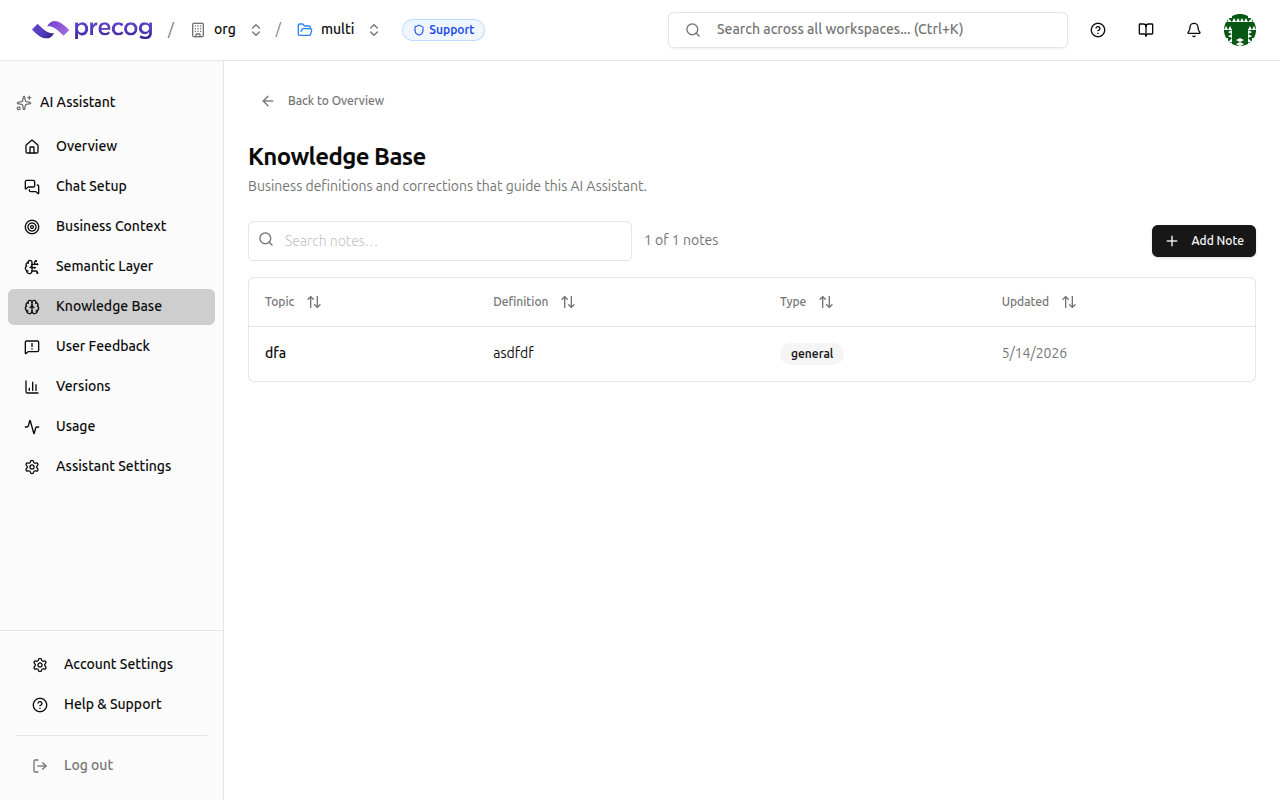
The Knowledge Base displays factors in a table view with:
- Search bar — Filter factors by name or description
- Status filter — Narrow the list to Active, Pending review, Replaced, Rejected, or Inactive factors
- Sorting — Sort by topic, definition, type, or last updated
- Pagination — Navigate through large sets of factors
- Multi-select — Tick the checkbox on each row, or the checkbox in the table header to select every factor on the current page, then apply a bulk action
Reviewing Factors
After creation, your assistant's knowledge base will contain factors extracted during the discovery step. Review these to ensure accuracy.
Approving or Declining a Factor
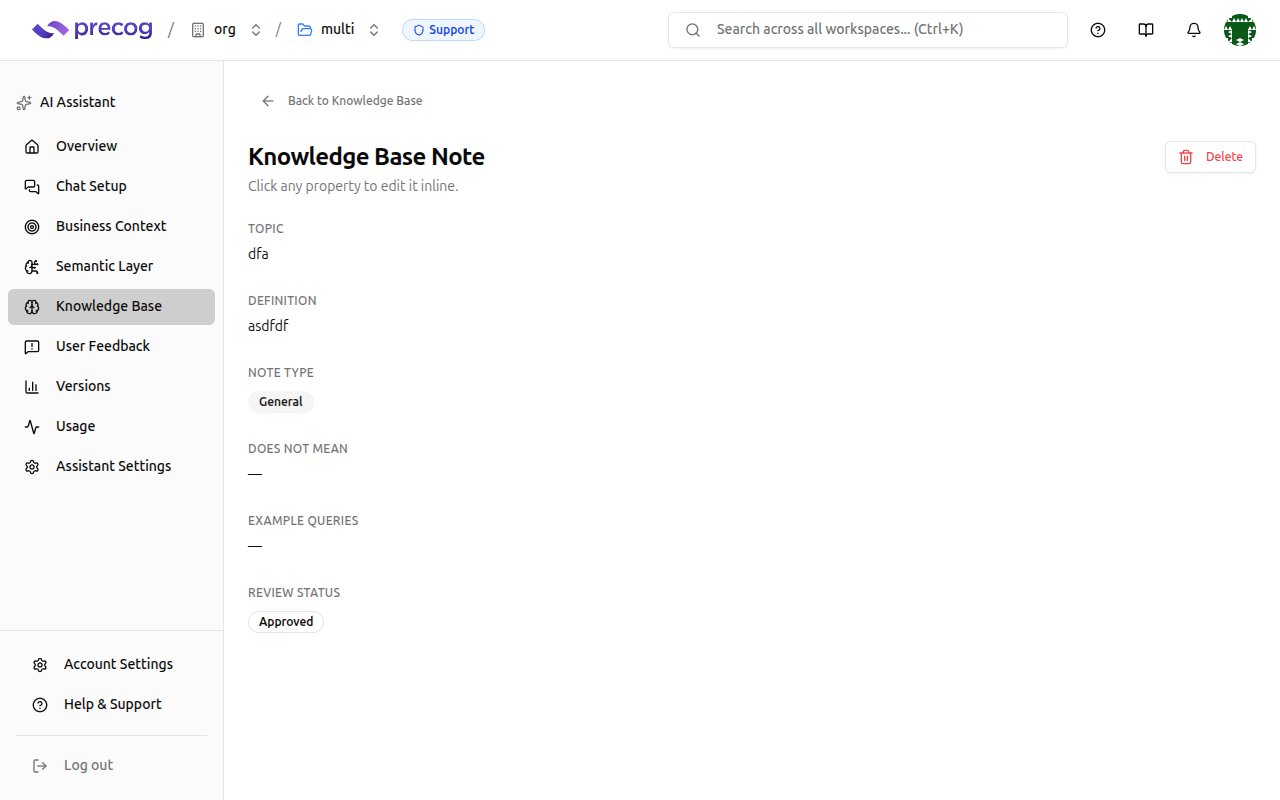
- Click on a factor to open its detail page
- Review the name, type, and description
- Click Approve to confirm the factor is accurate, or Reject to mark it as incorrect
- Optionally edit the factor's details before approving (see below)
Approved factors are incorporated into the semantic model during the next generation cycle. Rejected factors are excluded.
Creating a Factor
To add business knowledge that wasn't automatically discovered:
- In the Knowledge Base, click Add Note
- Select the factor type (KPI, Definition, Business Property, etc.)
- Enter a topic and description
- The factor is created with Approved status by default
Use manually created factors to capture business knowledge that isn't evident from your data schemas — for example, fiscal year definitions, regional business rules, or metric calculation methods.
Editing a Factor
- Click on the factor to open its detail page
- Edit the name, type, or description inline
- Changes are saved automatically
Editing a factor does not change its review status. If you edit a rejected factor and want to include it in model generation, change its status to Approved.
Deleting a Factor
- Click on the factor to open its detail page
- Click the dropdown arrow next to the Delete button
- Choose one of the two options:
Move to Inactive
Soft-deletes the factor. It is removed from active use but can be restored later.
- The factor no longer contributes to model generation
- The assistant stops retrieving it when answering questions, even if it was approved
- To bring it back, filter the list to Inactive, select the factor, and use the Restore bulk action
Delete Permanently
Permanently removes the factor. This action cannot be undone.
- A confirmation dialog will appear before the factor is deleted
- Once confirmed, the factor is irreversibly removed from the knowledge base
Bulk Actions
When you select one or more factors in the table, a bulk actions bar appears above the list showing how many are selected. From there you can apply the same action to the whole selection:
- Move to Inactive — Soft-deletes every selected factor. Disabled when everything selected is already inactive.
- Delete permanently — Irreversibly removes every selected factor.
- Restore — Returns inactive factors to active use. Disabled unless every selected factor is inactive.
Each action asks for confirmation before it runs, and Clear dismisses the selection without changing anything.
A few things to be aware of:
- Rejected factors cannot be restored. If your selection includes a factor that was rejected before it was made inactive, Restore is unavailable — restoring it would put knowledge you rejected back in front of the assistant. Approve the factor from its detail page first if you want it back.
- Partial results are kept. If some factors in a batch can't be updated, the ones that succeeded still apply and a message tells you how many failed.
- Selection resets when you change the search term, the status filter, or the page.
How the Knowledge Base Feeds the Semantic Model
The knowledge base directly influences how your Semantic Layer is generated:
- Approved KPIs become metrics in the semantic model
- Approved definitions inform column descriptions and naming
- Approved business rules shape how relationships and filters are defined
- Rejected factors are excluded from model generation
- Inactive and replaced factors are excluded too, whatever review status they had before they were retired
When you make significant changes to your knowledge base (approving, rejecting, or adding factors), the Semantic Layer page will show a banner indicating that the model may be out of date. You can then regenerate the model to incorporate your changes.
Best Practices
Review promptly: Newly discovered factors are pending review by default. Review and approve or reject them so the semantic model reflects accurate business knowledge.
Be specific in descriptions: The more detail you provide in a factor's description, the better the AI Assistant can use it. Instead of "Revenue metric," write "Monthly recurring revenue calculated as the sum of all active subscription amounts, excluding one-time fees and refunds."
Use corrections sparingly: Corrections are for clarifying common misunderstandings. If a factor is simply wrong, reject it and create a new one with accurate information.
Keep the knowledge base current: As your business evolves, update factors to reflect new metrics, changed definitions, or revised business rules.