
Chat Setup
Connect your AI tools to Precog with per-client setup instructions.
Each AI Assistant has a Chat Setup page that provides your MCP server URL and step-by-step instructions for connecting popular AI clients. This is the fastest way to get your tools connected — the URL is pre-filled, and you just follow the instructions for your client.
Finding the Chat Setup Page
- Open your workspace in Precog
- Navigate to AI Assistants in the sidebar
- Select your assistant
- Click Chat Setup in the assistant's sidebar
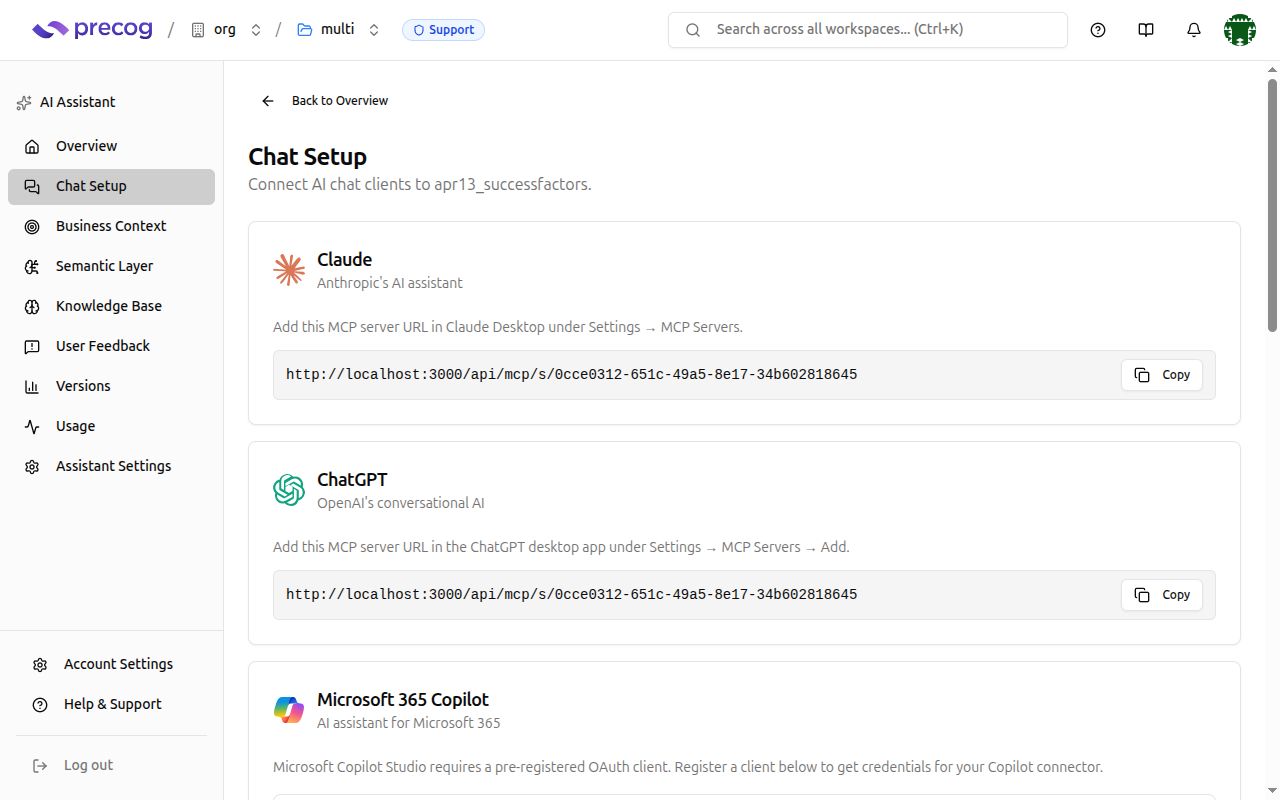
MCP Server URL
At the top of the Chat Setup page, you'll find your assistant's MCP Server URL. This is the URL you provide to AI clients to establish a connection.
- Click the Copy button to copy the URL to your clipboard
- Each assistant has a unique URL — if you have multiple assistants, make sure you're using the right one
Per-Client Setup Instructions
The Chat Setup page shows setup cards for each supported AI client.
Claude
Add the MCP server to your Claude Desktop configuration:
- macOS:
~/Library/Application Support/Claude/claude_desktop_config.json - Windows:
%APPDATA%\Claude\claude_desktop_config.json
{
  "mcpServers": {
    "precog": {
      "url": "<your-mcp-server-url>"
    }
  }
}
Claude Desktop handles the OAuth 2.1 sign-in flow automatically when you first connect.
ChatGPT
For help connecting ChatGPT to your Precog MCP server, contact Precog support. Our team can walk you through the setup for your specific ChatGPT configuration.
Google Gemini
The Chat Setup page includes setup instructions for Google Gemini. Follow the steps shown on the card to connect.
Google Gemini handles the OAuth 2.1 sign-in flow automatically.
Microsoft Copilot Studio
Microsoft Copilot Studio requires a pre-registered OAuth client. The Chat Setup page includes a built-in OAuth client registration flow — follow the steps on the card to register a client and configure the connection. See the MCP Server guide for additional details.
Authentication
All clients authenticate via OAuth 2.1. Interactive clients (Claude, ChatGPT, Google Gemini) handle the authorization flow automatically — you just provide the MCP server URL and sign in when prompted by your browser.
For automated or server-to-server access, see Machine Client Credentials.
Next Steps
- MCP Server — Advanced topics including machine client credentials, pre-registered OAuth clients, and supported tools
- Knowledge Base — Review the business knowledge your assistant uses to answer questions